
This was written during the 48h GMTK Game Jam.
“Roll to Paradice is a game about rolling a die called “Diceon” by pushing their side with the corresponding number on the keyboard. The goal is to roll far away from the human tabletop mega-fan and ascend to the Paradice.”
Synopsis: The dice rolls along the top of a dining table, where different obstacles are in the way of the rolling dice.The player needs to maneuver around obstacles while being chased by a hand which tries to grab the die.
Case:
While the dice rolls through different liquids (Jam or Oil) we wanted a collision/interaction effect. Giving the player feedback that the Jam/Oil will be affecting the dice movement mechanic (Jam makes the dice stuck and requires multiple taps to get unstuck).
A ripple/wiggle effect that would start when the player enters the trigger.
Setting up the Shader
I started off by setting up a shader in ShaderGraph that offsets the mesh vertices based on a Simple Noise node, resulting in a “wiggly” animation of the mesh vertices, the [Amount] parameter was controlled via script which gradually decreased as a result of losing energy.
I followed a tutorial which created a color changing shader based on player interaction on a sphere (Shader Graph and C# Interaction! Set Properties from Scripts! ✔️ 2020.3 | Unity Game Dev Tutorial) and used it as a base for creating a ripple, which I would use as a mask to blend with the “wiggle” effect. Here we needed the player world position [DicePosition] to create a starting position for the ripple and a timestamp [RippleStartTime] for when the player triggered the animation. The timestamp was needed to be able to move the ripple outwards from the player position.
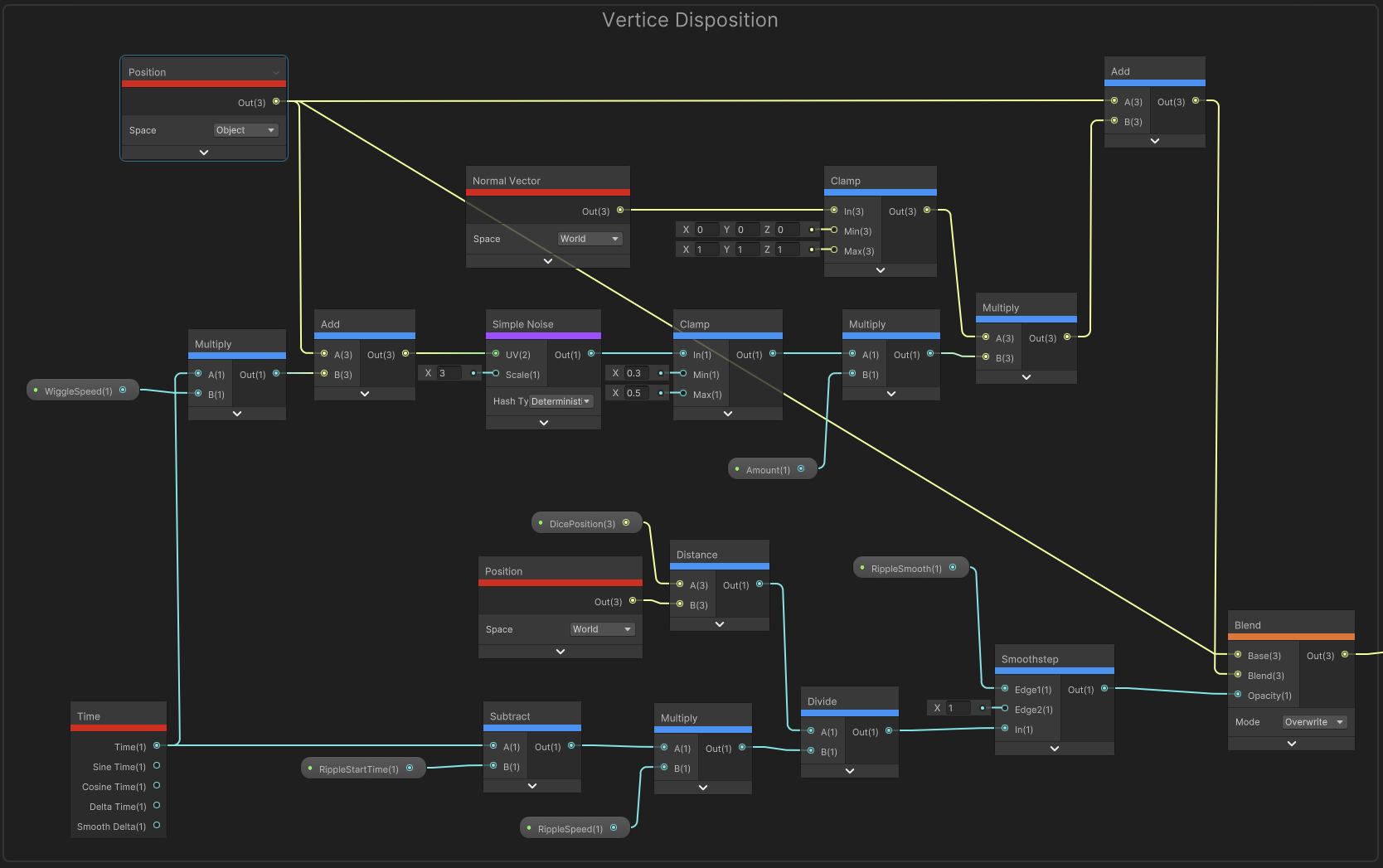
Here’s the final result of the vertice offset part of the shader. Upper section is the wiggle setup and the lower part is the ripple effect.
Setting up trigger
The public variables:
To make it less prone to setup errors I required the MeshRender component which is later assigned in Start().
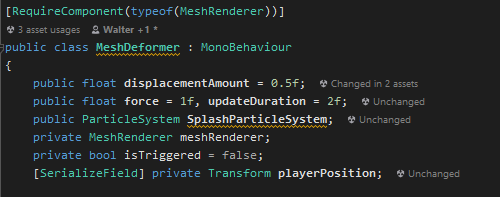
The MeshRender will be used to get the material and shader components. I subscribed to the Triggered() to the CubeController.OnDiceSideChanged event (and added an unsubscribe to the OnDestroy()). OnDiceSideChanged event is invoked whenever the dice was moved. This was to handle the player moving in the collider and continuously triggering.
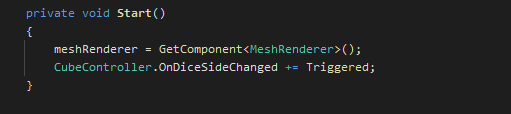
The Triggered() function will start a Coroutine which updates the Shader for duration set by updateDuration, and sets the isTriggered to true.
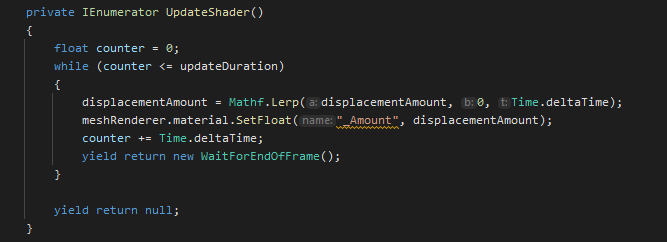
The shader tutorial (mentioned in the Setting up the Shader section) uses the Update() to drive the parameters for the shader. I moved this function to a coroutine to have it run for updateDuration, in this case: 2 seconds.

Since time was a limited resource I used a simple box collider and set it as trigger and used the Monobehaviour support for OnTrigger() and checked for the “Player” tag. The OnTriggerStay() also checks if it has been triggered to avoid Collide() being called each frame.
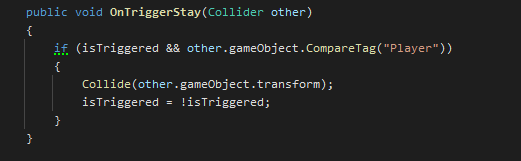
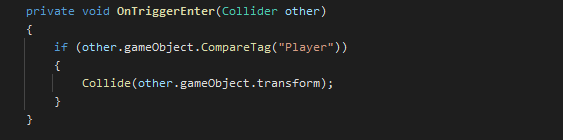
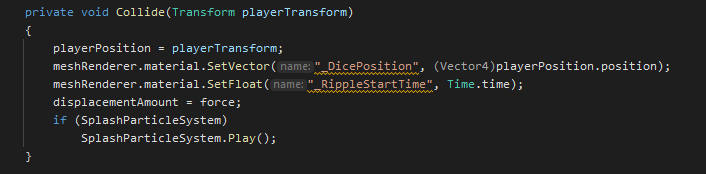
The Collide() updates the shader parameter “_DicePosition“ with a new trigger position based on the player world position. Sets a new time for the “_RippleStartTime” to restart the ripple effect. The Force parameter is copied to displacementAmount which is used for driving the wiggle amount. And if there’s a Particle System assigned it’ll trigger to give further feedback.
The result:
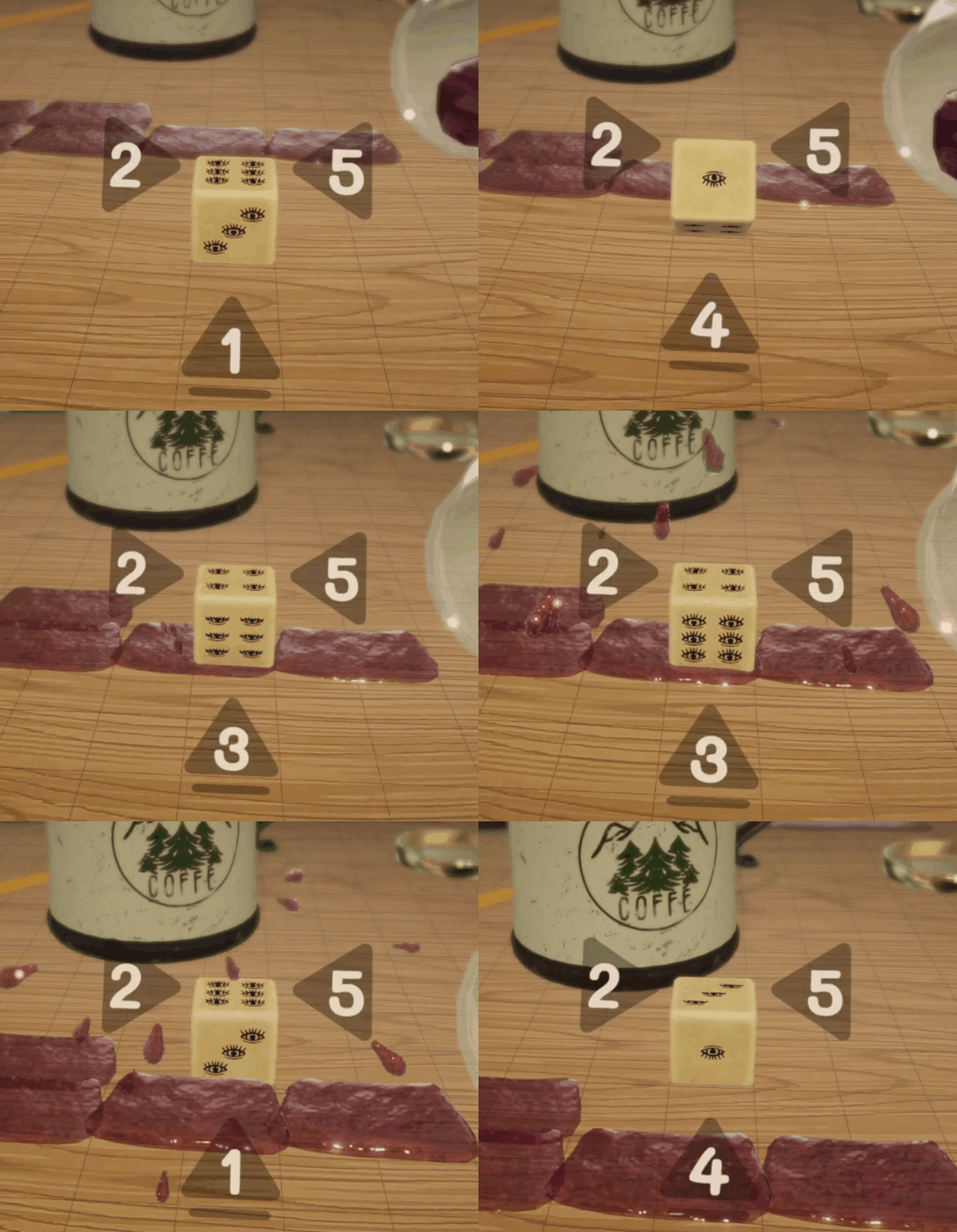
The player needs to quickly press the camera-facing number multiple times to unstuck from the jam. Particles are triggered to prompt that the player is on the right track.